
Welcome!
This guide will walk you through the simple process of installing our application and logging in to start your viewing experience. Please follow these steps carefully.
Step 1: Navigate to Settings
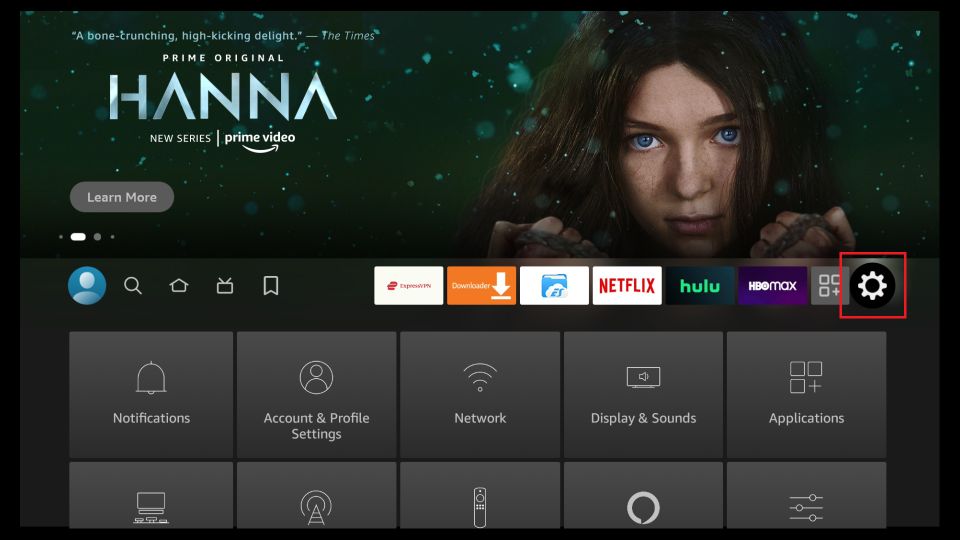
Part 1: Preparing Your Device (One-Time Setup) First, we need to allow your Fire TV device to install applications from outside the official Amazon Appstore. From the main Home Screen, navigate to the Settings icon (the gear symbol  ).
).
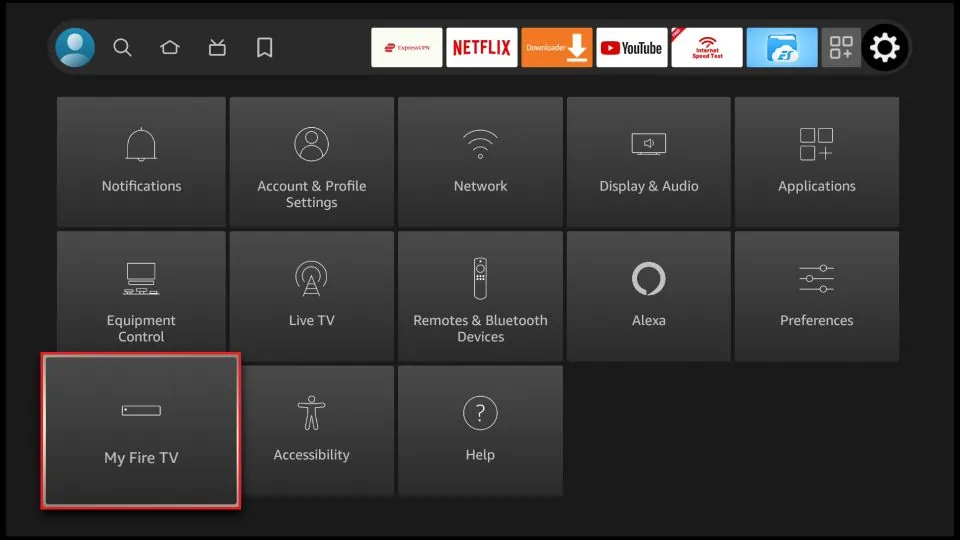
Step 2: Select My Fire TV
In the Settings menu, find and select the ‘My Fire TV’ option.
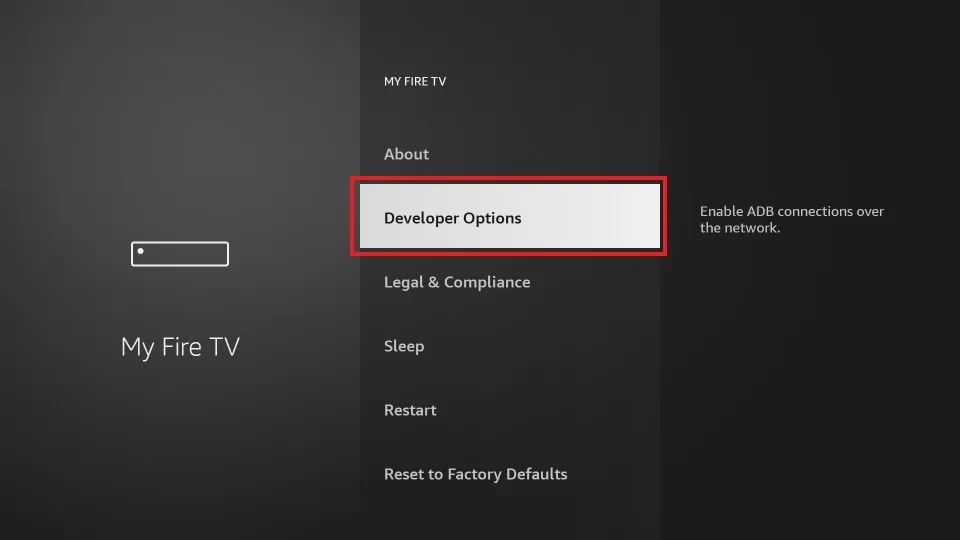
Step 3: Choose Developer Options
Next, choose ‘Developer Options’. Important Note: If you do not see ‘Developer Options,’ select ‘About’ first. Then, click on your device’s name (e.g., Fire TV Stick 4K) about 7 times in a row until a message appears saying, ‘No need, you are already a developer.’ Go back one screen, and ‘Developer Options’ will now be visible.
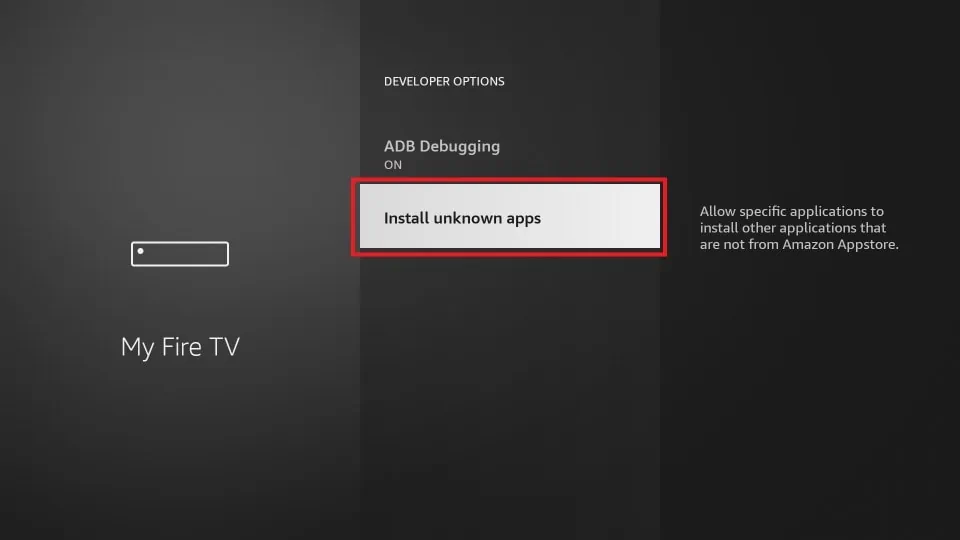
Step 4: Select Install unknown apps
Inside the Developer Options menu, select the ‘Install unknown apps’ option.
Step 5: Enable Downloader
Find the Downloader app in the list. Select it to change its status from OFF to ON. Your device is now prepared. You will not need to repeat these steps again.
If you don’t have it, please search for ‘Downloader’ and install it first;
(From the home screen of your device, hover over the Find option -> Click Search -> Search for and select Downloader -> Choose the Downloader app Click Download).
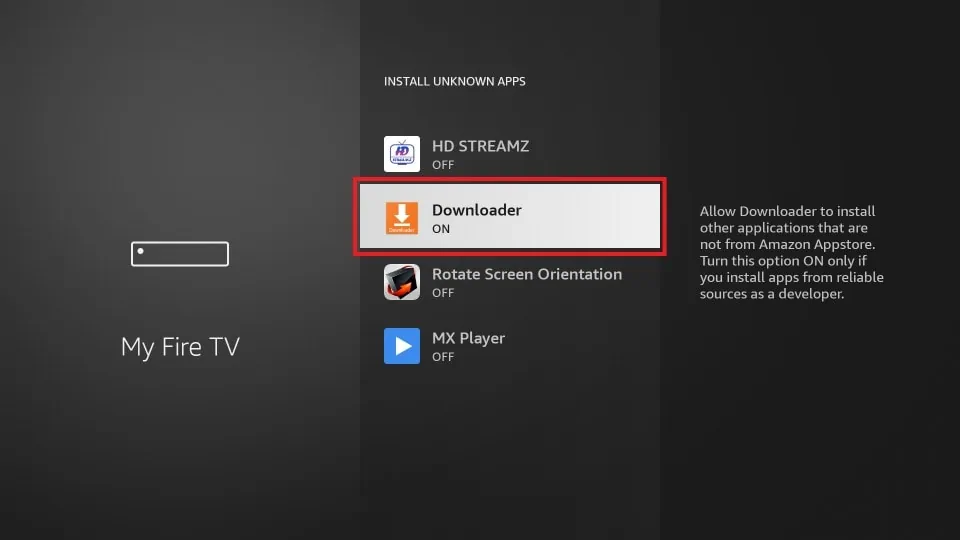
Step 6: Open the Downloader App
Part 2: Installing Our Application Now we will use the Downloader app to install our service. Return to the Home Screen and open the Downloader app.
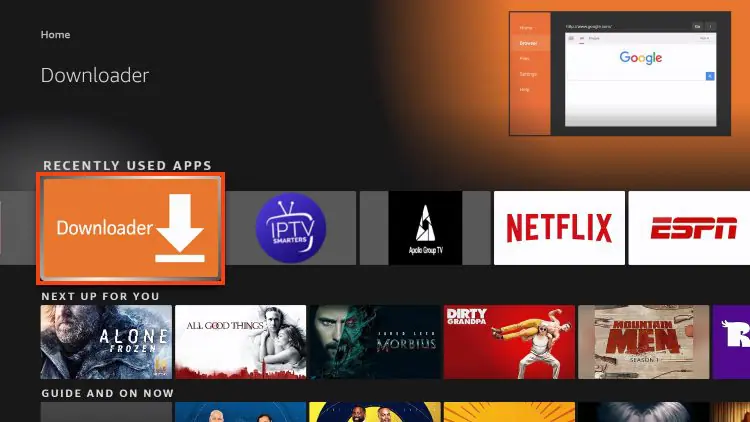
Step 7: Allow Permissions
If you are opening Downloader for the first time, a prompt will appear asking for permission to access files. Click ‘Allow’. This is necessary for it to save the application file.
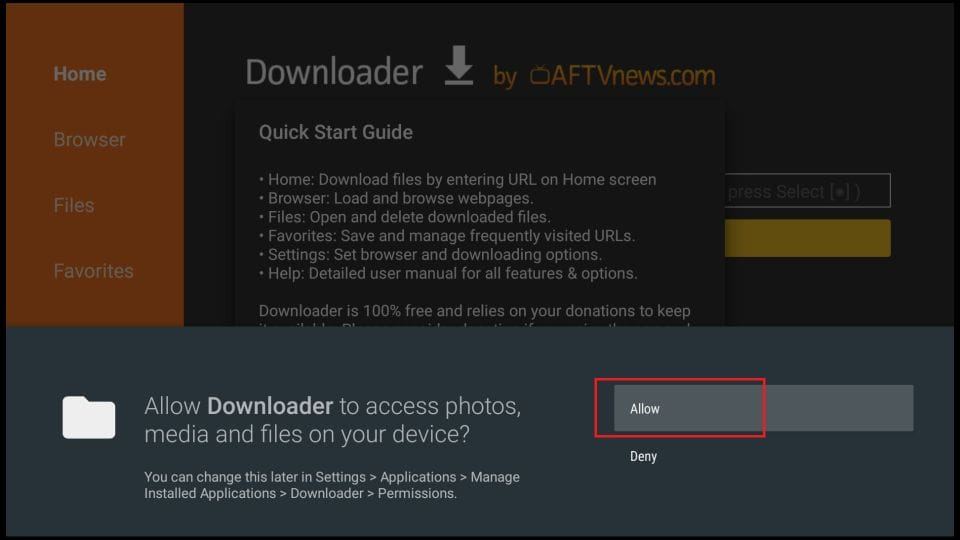
Step 8: Navigate to URL Entry Box
You will now see the Downloader home screen with an entry box for a URL. This is where you will type the download address.
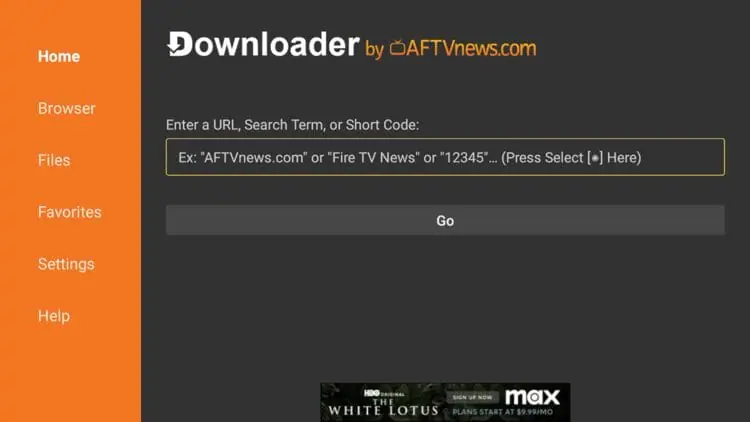
Step 9: Enter the link provided
Type the following URL exacrly as shown here : https://www.iptvsmarters.com/smarters.apk
And click Go.
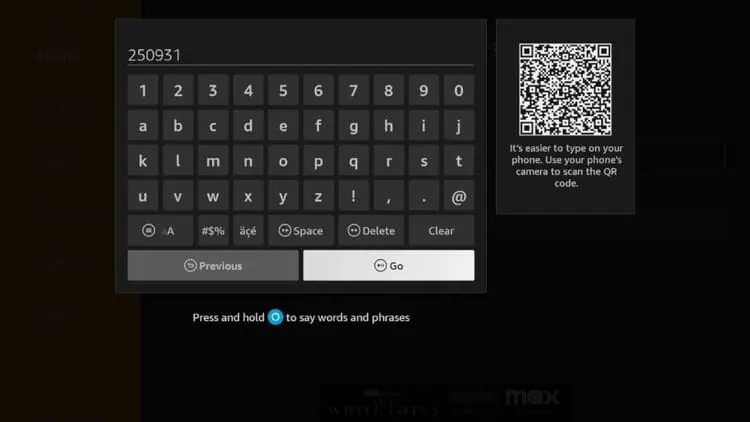
Step 10: Wait for Download

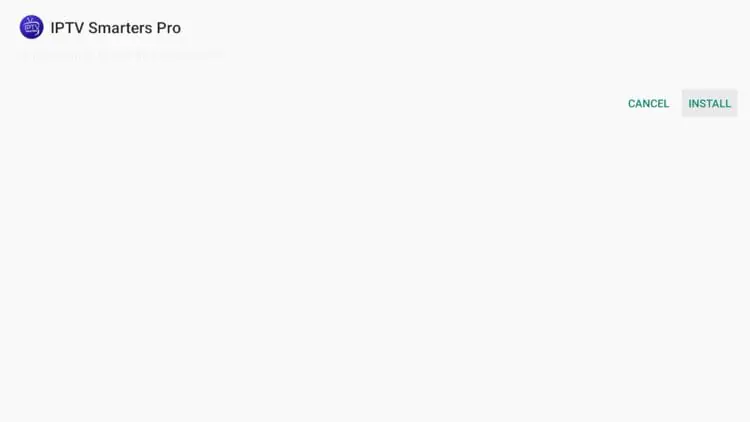
Step 11: Install the Application
Once the download is complete, the installation screen will pop up automatically. Use your remote to navigate to and click the ‘Install’ button.
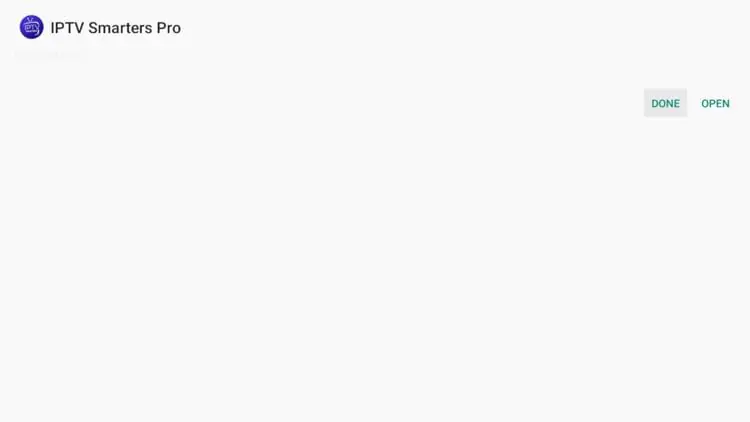
Step 12: Confirm Installation
When the installation process is finished, a confirmation message will display ‘App Installed’. It is best to click ‘Done’ for now. (Do not click ‘Open’ yet).
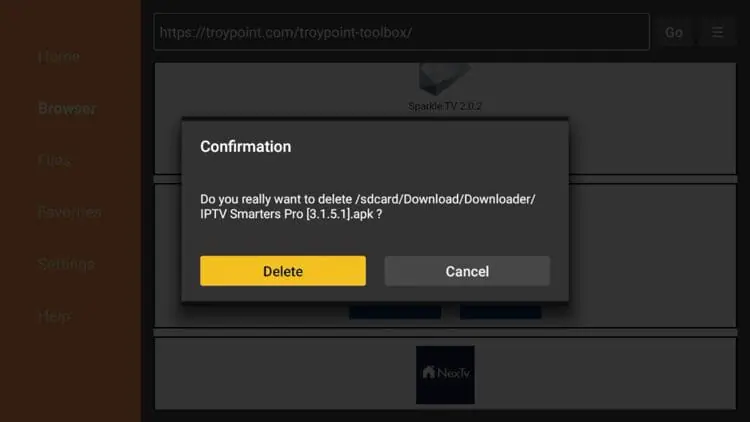
Step 13: Delete the Installer File
You will be automatically taken back to the Downloader app.
(A pop-up could appear with the installation file details, asking what you want to do next. Click ‘Delete’ to save valuable space on your device).
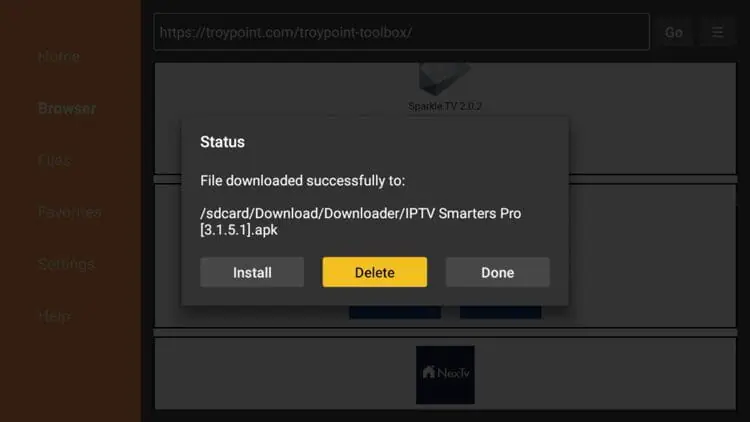
Step 14: Confirm Deletion
Click ‘Delete’ a second time to permanently remove the installation file. Our application is now successfully installed on your device.
Step 15: Find and Open Our App
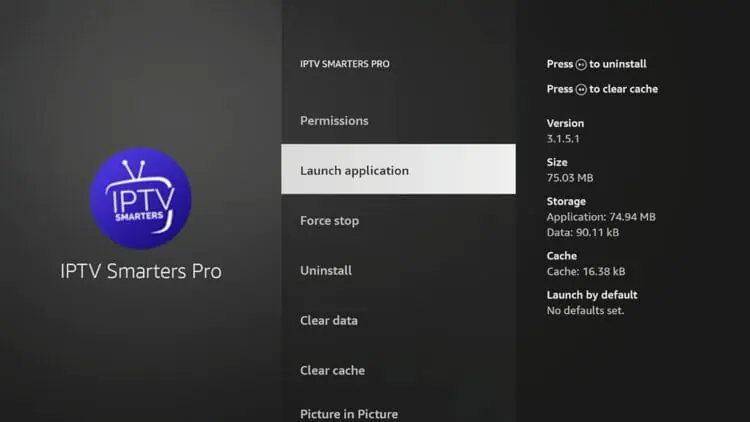
Part 3: Logging In & Starting to Watch Now that the app is installed, let’s log in with your subscription details. Go to your Fire TV’s Home Screen. Navigate to the ‘Your Apps & Channels’ section and find our new app’s icon. Click to open it.
Step 16: Select Login Method
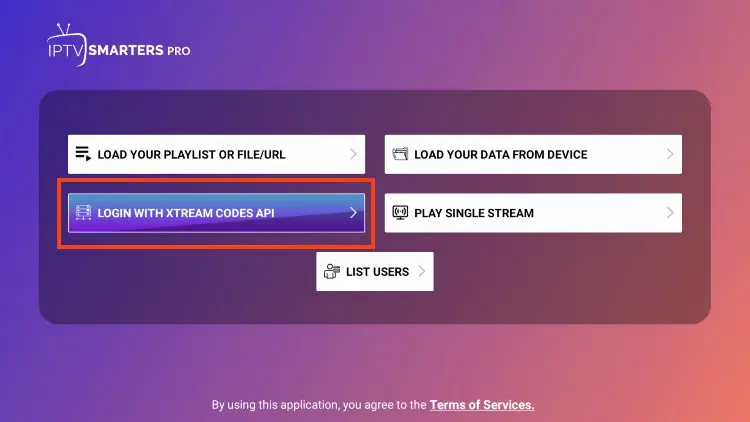
When you open the app for the first time, you will likely see several login options.
Please select the option that says ‘Login with Xtream Codes API’ or ‘Add New User’.
Step 17: Enter Your Credentials
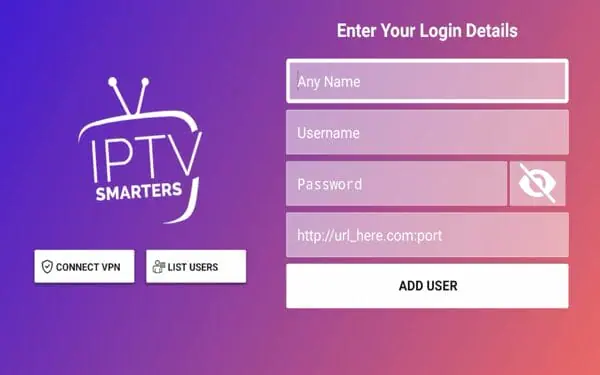
A new screen will appear with four fields. Here you must carefully enter the subscription details we sent to you. – Any Name / Playlist Name: You can write any name you like here (e.g., My Home TV). – Username: Enter the exact username we provided. – Password: Enter the exact password we provided. – URL/Host: Enter the server URL we provided, starting with http://.
Important: Please double-check every character you type. A small mistake in any of these fields will result in a login error.
Step 18: Loading Content
The app will now begin to load the channels, movies, and series associated with your account.
This process may take a minute or two. Please be patient.
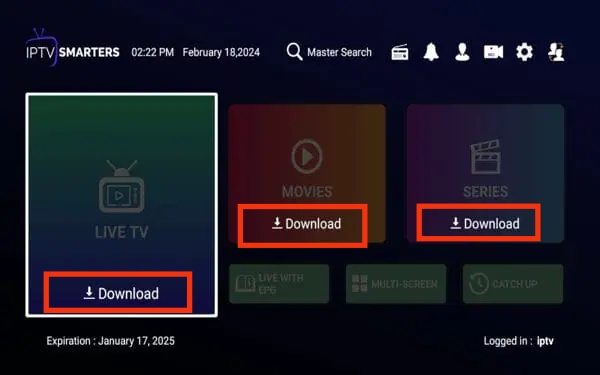
Step 19: Enjoy the Show!
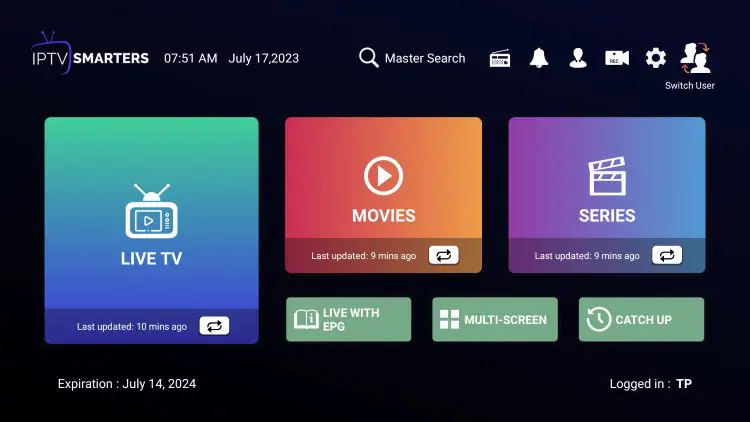
Congratulations! You are now logged in. You will see the main dashboard of the app.
You can now explore Live TV, Movies, and Series. Enjoy the show!
Welcome!
This guide will walk you through the simple process of installing our application and logging in to start your viewing experience. Please follow these steps carefully.
Step 1: Open Your Browser
Before proceeding, check the Play Store by searching for “Smarters Pro.”
If the app isn’t available on your device, you can install it using the alternative steps provided below.
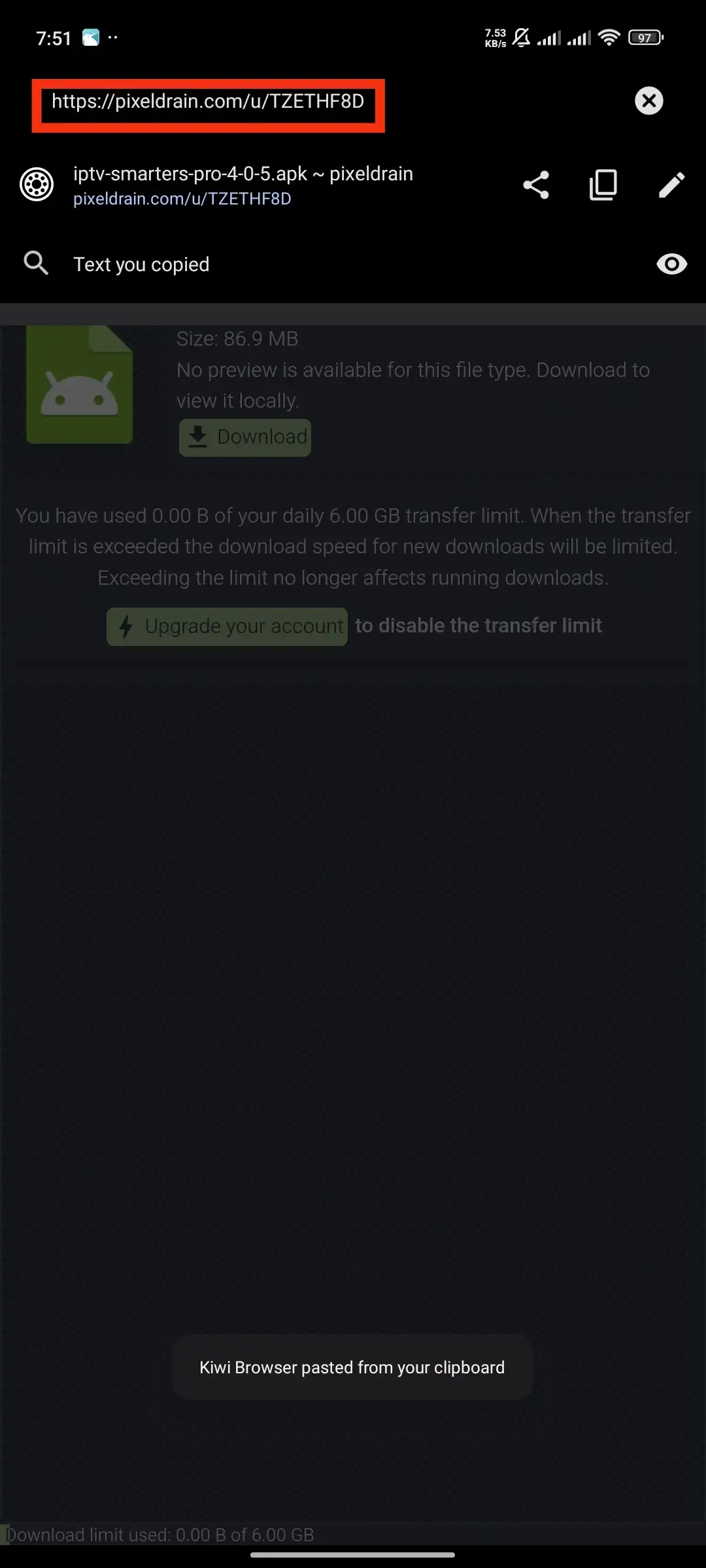
Launch your preferred web browser, such as Google Chrome, on your Android device. Navigate to the download link we provide for the IPTV Smarters Pro application by clicking here or copying this URL: https://pixeldrain.com/u/TZETHF8D
Step 2: Download the Application
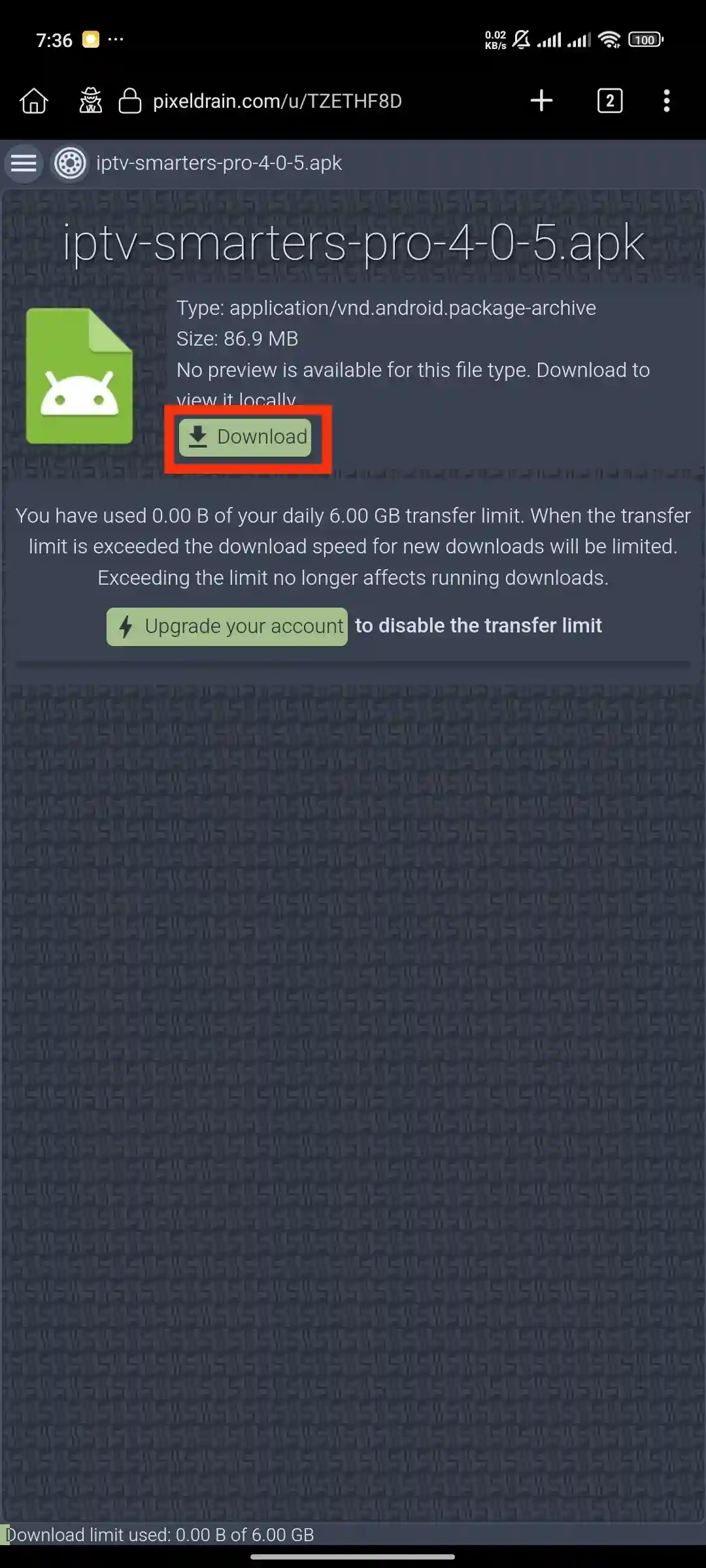
Once on the page, locate and tap the download button to start downloading the IPTV Smarters Pro APK file to your device.
Install the Application
After the download is complete, open the downloaded file. You may need to grant permission to install apps from unknown sources. Follow the on-screen prompts to install the app.
Step 4: Open IPTV Smarters Pro & Select Device
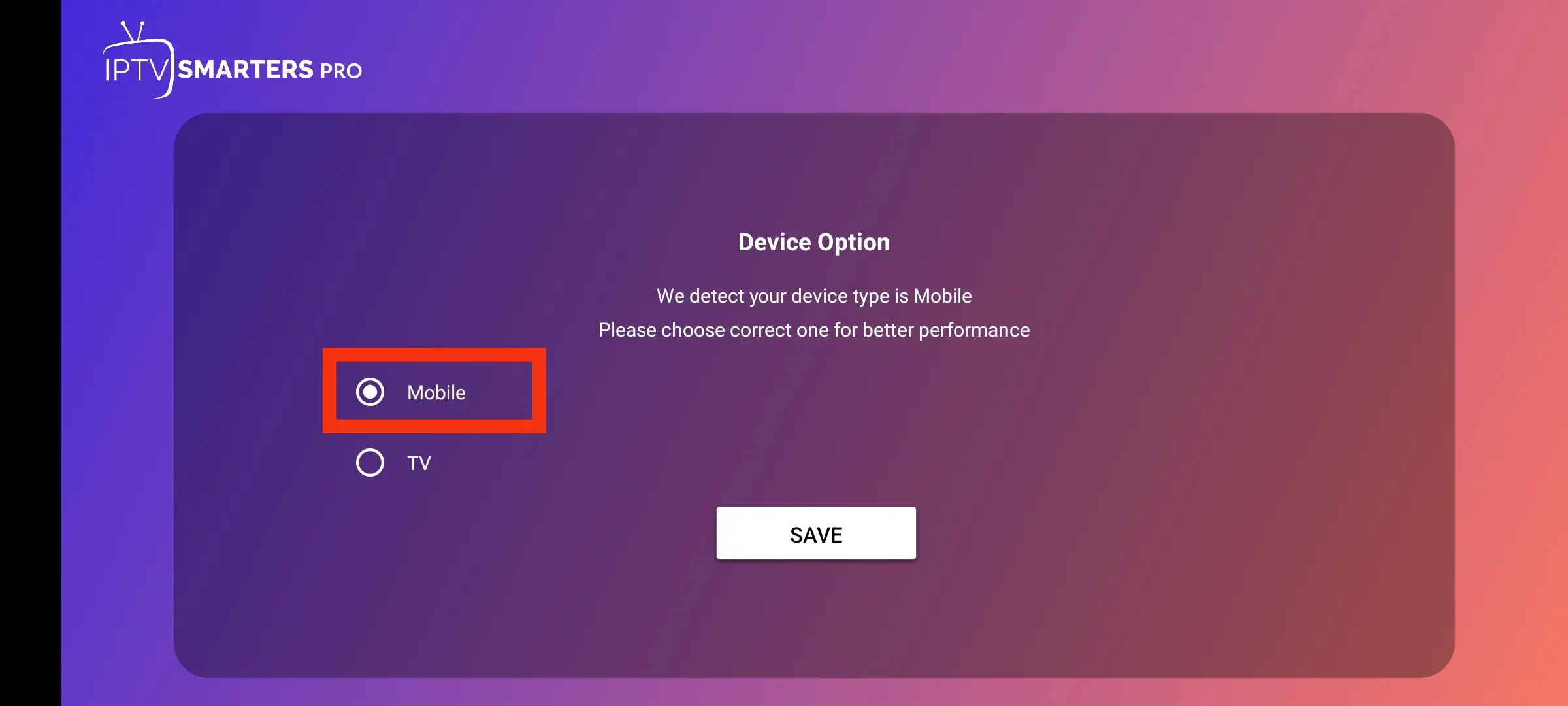
Find the newly installed IPTV Smarters Pro app and open it. On the initial screen, you will be asked to choose your device type. Select ‘Mobile’.
Step 5: Choose Your Login Method
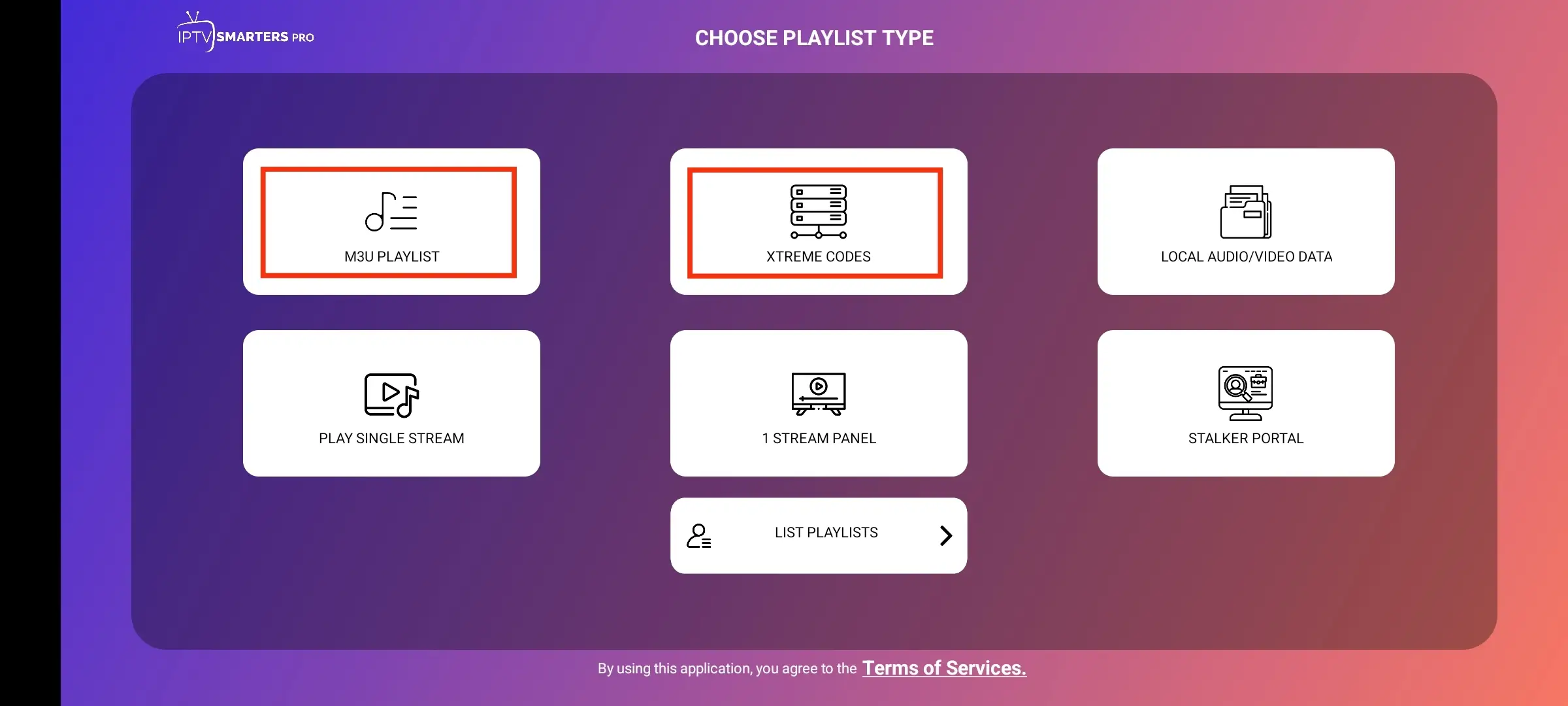
The app will present you with several ways to log in. For the easiest and most reliable setup, we will use the ‘Login with Xtream Codes API’ method (Player API). Please select this option to proceed.
Step 6: Enter Your Login Details
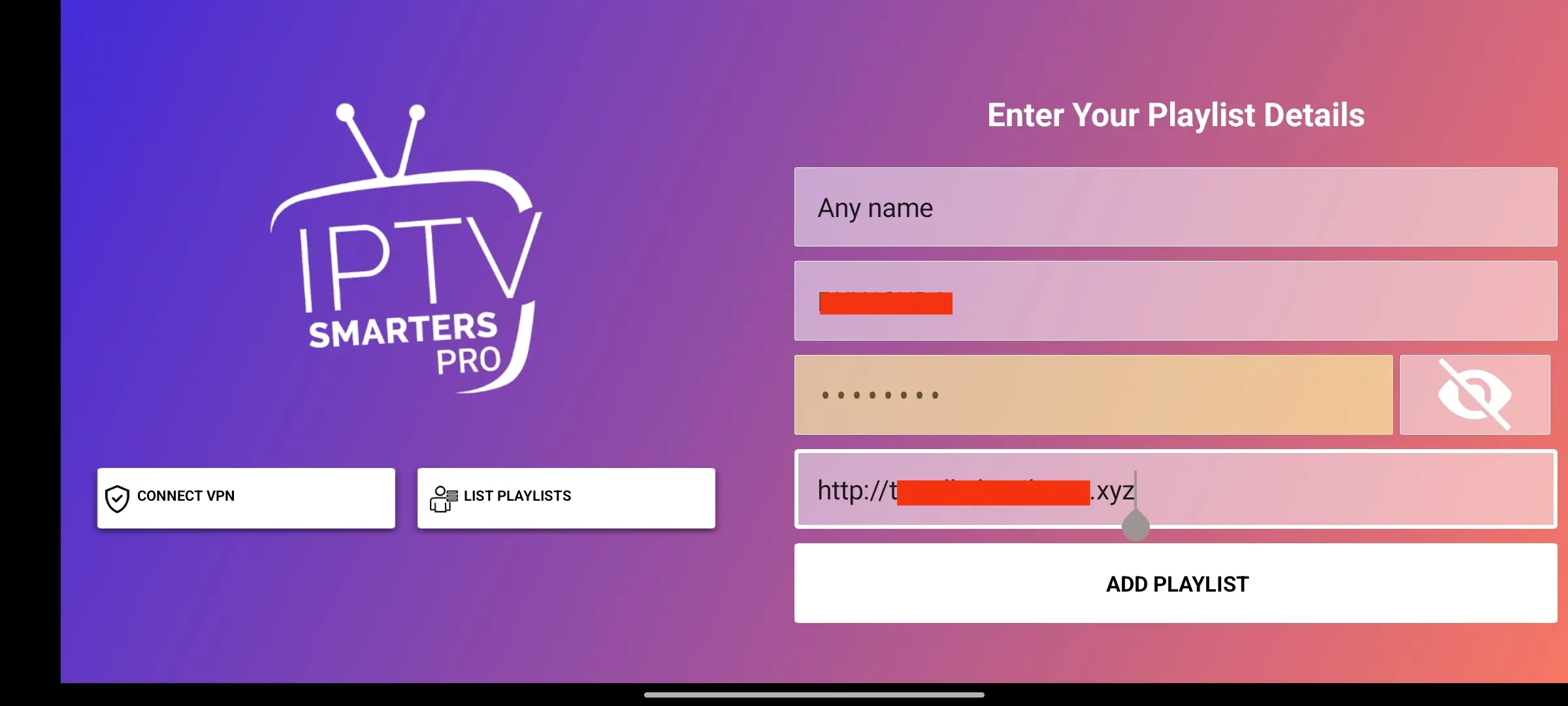
You are now on the Xtream Codes API login screen. Carefully enter the credentials (Playlist Name, Username, Password, and URL) that we provided in your subscription email, then tap ‘Add User’.
Step 7: Download Content
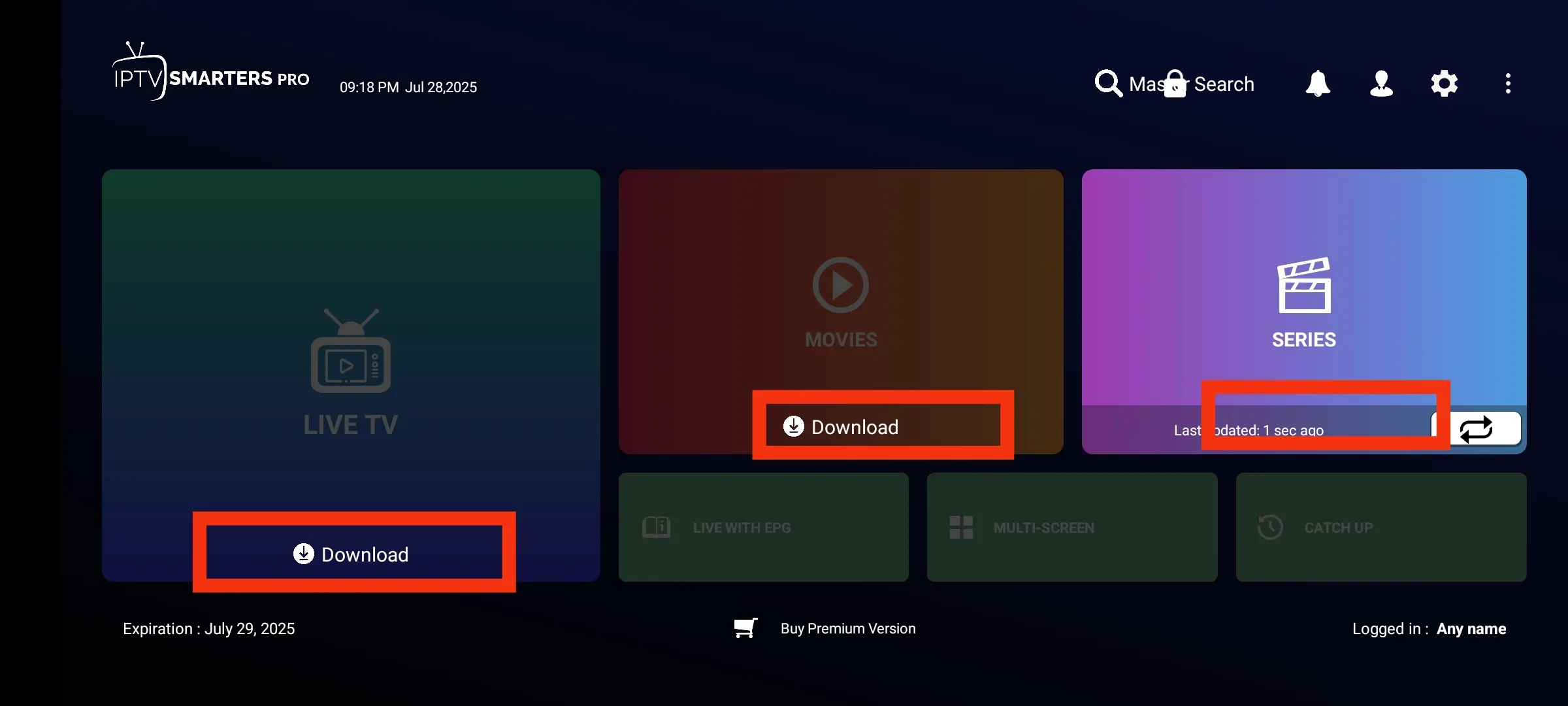
The app will now connect to our servers and start downloading the list of channels, movies, and series. This may take a minute or two depending on your internet speed.
Step 8: Congratulations!
Your account is now set up and ready to go! You can now browse the extensive library of live TV and on-demand content. Enjoy the show!
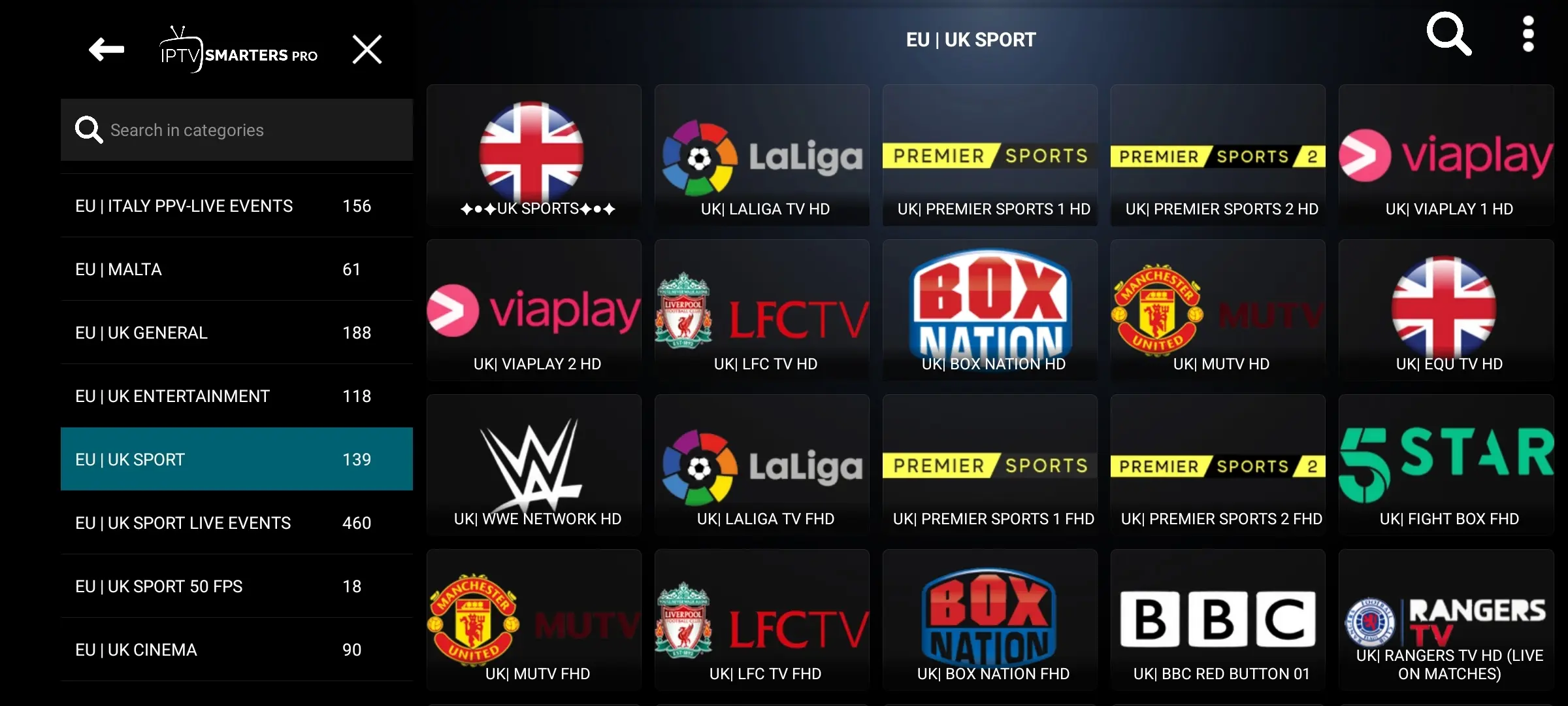
Welcome!
This guide will walk you through the simple process of installing our application and logging in to start your viewing experience. Please follow these steps carefully.
Step 1: Download the App
Open the App Store on your iOS device (iPhone or iPad) and use the search bar to find “Smarters Player Lite“
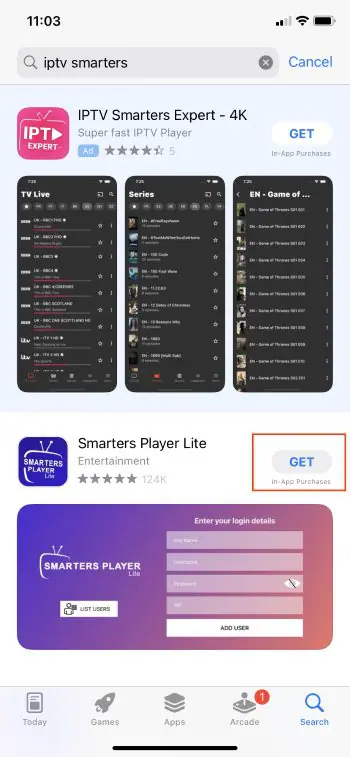
Step 2: Install & Launch
Select the official ‘Smarters Player Lite’ application from the search results and tap the ‘Get’ or cloud icon to download and install it on your device. Once the installation is complete, find the Smarters Player icon on your home screen and tap to open it.
.webp?alt=media&token=73abc62c-bec2-4d2d-9e42-2c33cbc122d7 "Setup Guide")
Step 3: Configure the Service and Choose the Login Method
After installing the app, you’ll proceed to configure your IPTV service. In this step, you’ll need to enter your IPTV subscription details. Among the available options, it is strongly recommended to always choose ‘Login with Xtream Codes API’. This method is the easiest, most stable, and provides a smooth experience without technical issues.
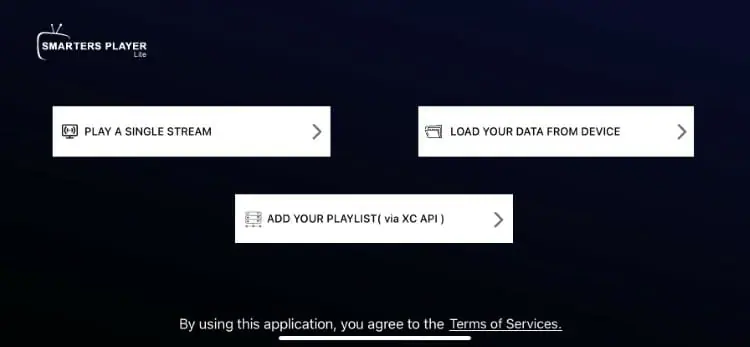
Step 4: Login Using Xtream Codes
Since we chose the Xtream Codes login method, fill in the details you received from our provider: username, password, and server URL. Always double-check the information—especially the server URL, as it is crucial for successfully connecting to the service.
Step 5: Enjoy Your Content
Now that everything is set up, all you need to do is download the channel list. Once loaded, you’ll find everything working perfectly and ready to enjoy.
Welcome!
This guide will walk you through the simple process of installing our application and logging in to start your viewing experience. Please follow these steps carefully.
Step 1: Initial Device Setup
Before you begin, ensure your MAG Box is correctly connected to your television with an HDMI cable and to your internet router using an Ethernet/LAN cable for the most stable and reliable streaming experience with ICS IPTV.
Once all cables are securely in place, power on your MAG device.
Step 2: Access the Main Settings
Once your MAG Box has finished booting up and you are on the main home screen (the Inner Portal), locate the ‘Settings’ button on your remote control. It is typically represented by a gear icon (). Press it to enter the main configuration menu of your device.
Step 3: Navigate to System Settings
Inside the ‘Settings’ menu, you will see several options. Use the directional arrow keys on your remote to highlight ‘System Settings’ and press the ‘OK’ button to proceed. This is where the core device configurations are managed.
Step 4: Open Servers & Portals
Within ‘System Settings,’ navigate to the ‘Servers & Portals’ option. This section allows you to specify the server address from which your MAG Box will load the ICS TV service and all its content.
Step 5: Configure Portal 1
You will see a list of portals, typically from 1 to 4. We will configure the first one. In the ‘Portal 1 name’ field, you can enter a descriptive name like ‘ICS IPTV’. Then, move to the ‘Portal 1 URL’ field.
This is the most crucial step.
Step 6: Enter the Portal URL
Using the on-screen keyboard, carefully type the unique Portal URL that was provided in your ICS IPTV subscription confirmation email. It is essential to enter this address exactly as it was given to you, without any typos.
Double-check your entry before proceeding.
Step 7: Save and Reboot
After entering the URL, press the ‘OK’ or ‘Save’ button on your remote to store the settings. You will be prompted to reboot the device for the changes to take effect. Confirm the reboot. Your MAG Box will now restart.
Step 8: Launch the Epix IPTV Portal
Upon restarting, your MAG Box will automatically attempt to load the portal from the URL you just entered. If all details were entered correctly, the ICS IPTV portal interface will load, presenting you with categories for Live TV, Movies, and Series. Your setup is now complete, and you’re ready to explore a huge library of ICS tv shows and other content!